
Install the app from the link
After you request the connection, an email with the install link arrives within minutes. This guide shows what to do with it. It takes about a minute.
Before you start
- You requested the connection in Flowfy. If not, start from the section page.
- A login to your Shopify admin that can install apps.
Install the app
1. Log in to your Shopify admin
Open your Shopify admin and stay logged in, in the same browser where you will open the link. If you open the link while logged out, Shopify asks you to log in and then continues.
2. Open the install link
Click the link in the email. Or open the connect page in Flowfy, now titled Your link is ready, and click Install Flowfy in Shopify.
3. Approve the install
The install page opens in your Shopify admin. Read the permissions it lists, then click Install.
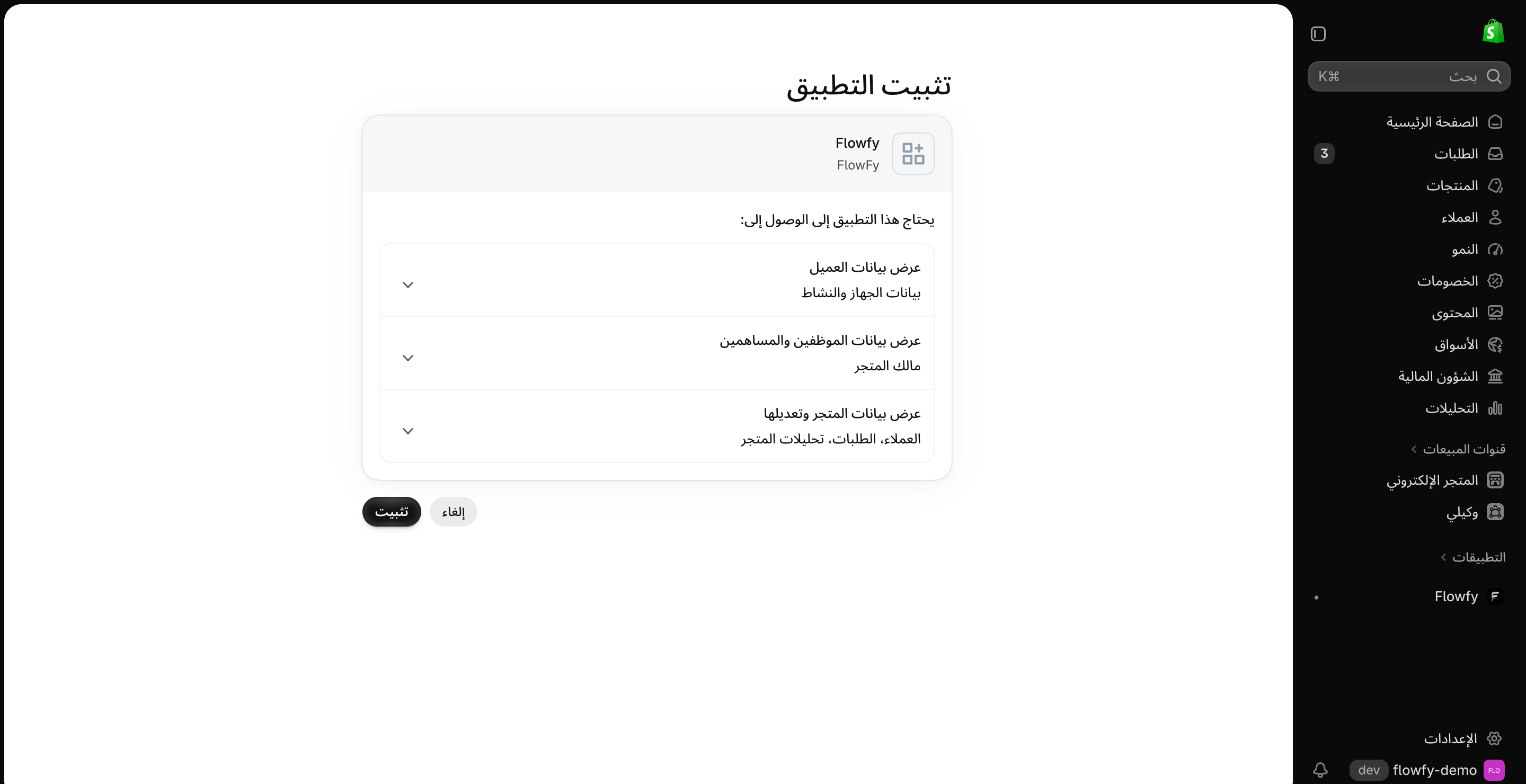
4. Flowfy opens inside Shopify
After you approve, Flowfy opens inside your Shopify admin, connected to the same Flowfy account. You do not need a new account or another login.
Go back to the connect page in Flowfy. It is now titled Connected.
What starts right away
- Order sync. Your orders start arriving in Flowfy.
- Visitor tracking. Flowfy tracks visits, add to cart, checkout started and purchases.
You do not need to change your theme for this to work.
Next step
This step is optional. For more accurate visit tracking and better order-to-ad matching, continue with Turn on store tracking.
If something goes wrong
The link says it has expired or cannot be used. Ask us for a new link through Contact us or on WhatsApp, and include your store address.
Shopify shows a different store. You are logged in to another store. Log out, log in to the store you requested, and open the link again.
Shopify says you cannot install apps. Your login does not have that permission. Ask the store owner to install the app, or to give your login permission to install apps.
The connect page still shows "Your link is ready" after the install. Wait a minute and refresh the page. If it stays that way, contact us.