
Shopify
Flowfy connects your Shopify store through a private app we prepare for your store alone, until the official Flowfy app is approved in the Shopify App Store. Everything on our side happens automatically. You never create anything in Shopify yourself.
What you need
- An email inbox you can open now, because the install link is sent there.
- Your store's Shopify address. It looks like this:
your-store.myshopify.com
- The owner login of your Shopify admin, or a staff login that can install apps.
Request the connection
1. Create your Flowfy account
Sign up at the address below. If you already have an account, log in.
app.tryflowfy.com
2. Choose Shopify in onboarding
In the connect-your-store step, choose Shopify. The connect page opens. You can find it later at this address:
app.tryflowfy.com/connect/shopify
3. Enter your store address and send the request
Enter your store address as in the example above, with nothing before it, then click Connect Shopify.
myshopify.com, even if your customers visit your store on your own domain. You find it in your Shopify admin under Settings › Domains.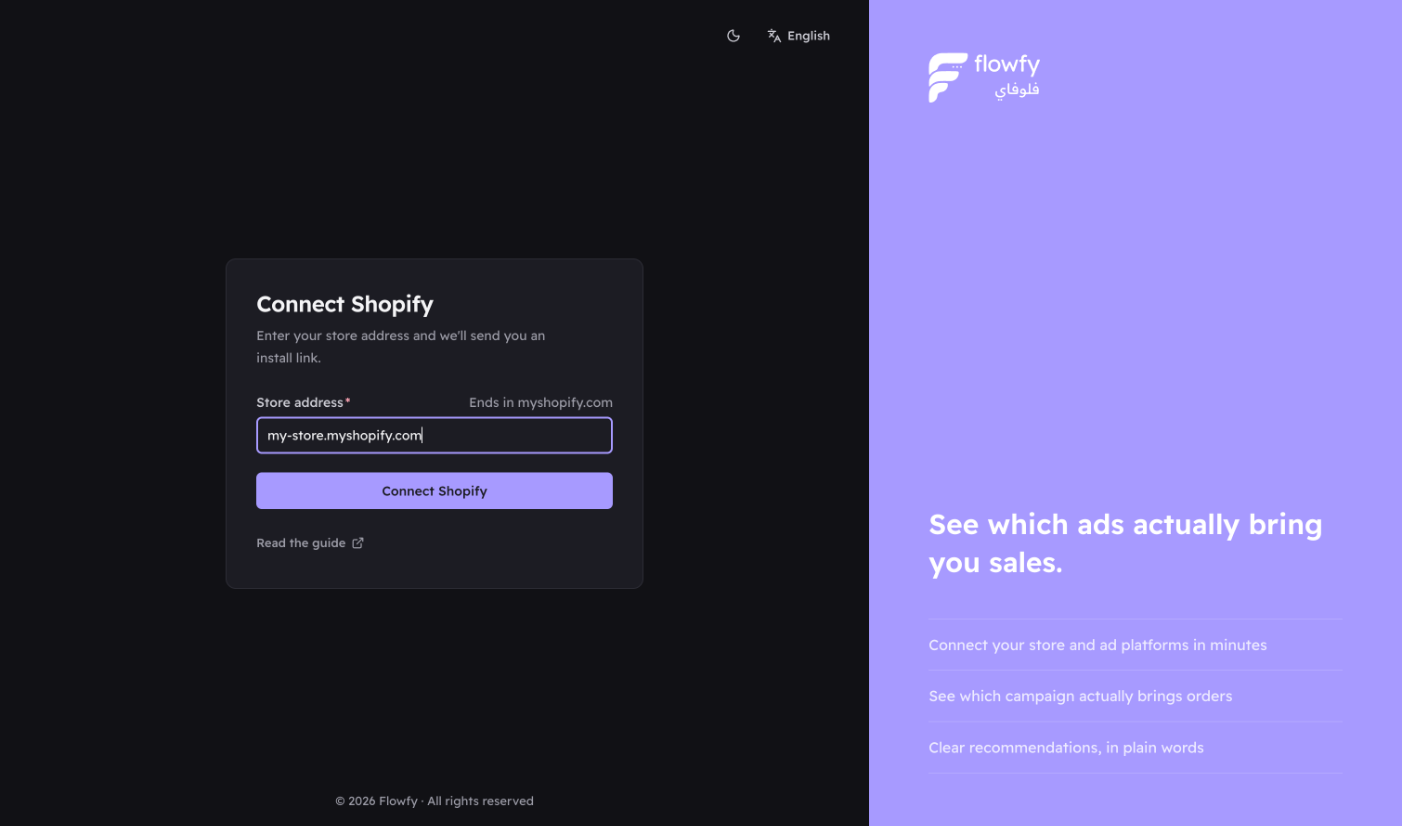
4. Wait a few minutes
The connect page now shows Preparing your install link. Within minutes you get an email with the install link, and the install button appears on the same connect page.
You do not need to keep the page open. Your request is saved.
Next steps
- Install the app from the link — approve the install, and tracking and order sync start right away
- Turn on store tracking — an optional step for more accurate tracking, one switch in your theme
- Move to the official Flowfy app — later, once the official app is approved
If something goes wrong
Flowfy says the address is not valid. Check that it ends in myshopify.com, with no spaces and nothing before it.
Flowfy says the store is connected to another account. This store is already connected to another Flowfy account. Log in with that account, or contact us.
The email did not arrive. Check your spam folder first. You can also open the connect page, because the install button appears there as soon as the link is ready.
I entered the wrong store. Send us the right address and we will fix the request.
Need help?
Message us from Contact us or on WhatsApp, and include your store address.