Google Ads
Connecting Google Ads lets Flowfy report every order from your store to Google Ads as a conversion, together with the ad click that brought the customer, so your campaigns and Smart Bidding see the sales that browser tracking misses.
Google Ads works differently from the other guides. There is no token to copy and no destination to create by hand: you sign in with Google from inside Flowfy, and Flowfy creates the conversion actions in your Google Ads account for you.

Watch the Google Ads setup walkthrough
Before you start
- A Google login that can manage your Google Ads account.
- The owner or an admin role in your Flowfy team. Other roles can see the page but cannot set up tracking.
- Flowfy's tracking on your website. Google Ads only receives events collected in your shoppers' browsers, because that is where the Google ad click is read. If you have not connected your store yet, start with Getting started.
Part 1 · Connect your Google Ads account
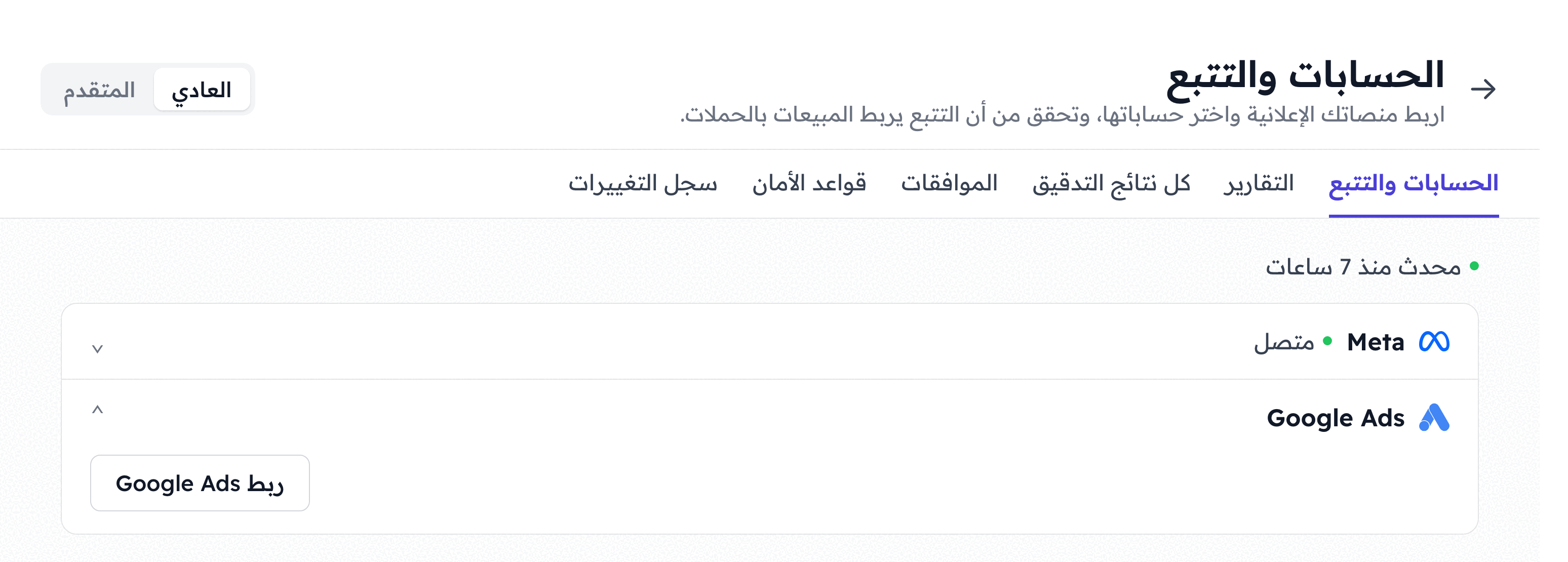
1. Open Accounts & tracking
From the sidebar, open Integrations and click Connect a platform. The Accounts & tracking page opens.
2. Sign in with Google
Click Connect Google Ads. A Google window opens: sign in with the account that manages your Google Ads, and keep every permission switched on when Google asks. One of them lets Flowfy send conversions, and without it the tracking section never appears.
Flowfy shows Waiting for Google Ads… Finish in the window that opened. until you are done.
3. Choose your ad account
When you come back, Flowfy asks you to Choose your ad account on Google Ads. If your Google login has one ad account, it is listed on its own: click Add account. If it has several, the title reads Choose your ad accounts on Google Ads: tick the account your campaigns run in and click Save. Manager accounts work too.
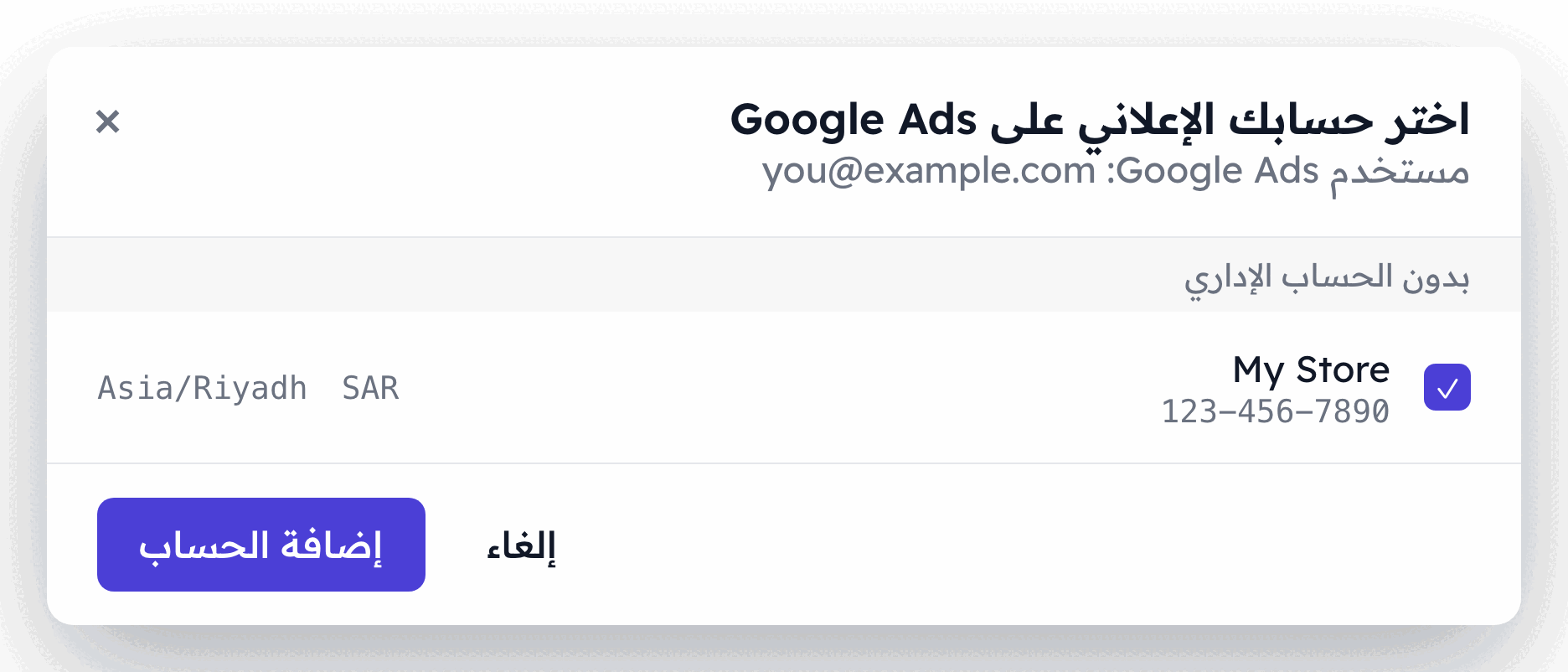
The Google Ads row now lists that account with a Pixel required badge. The badge stays until you finish Part 2.
Part 2 · Set up conversions
1. Turn on the two Google settings
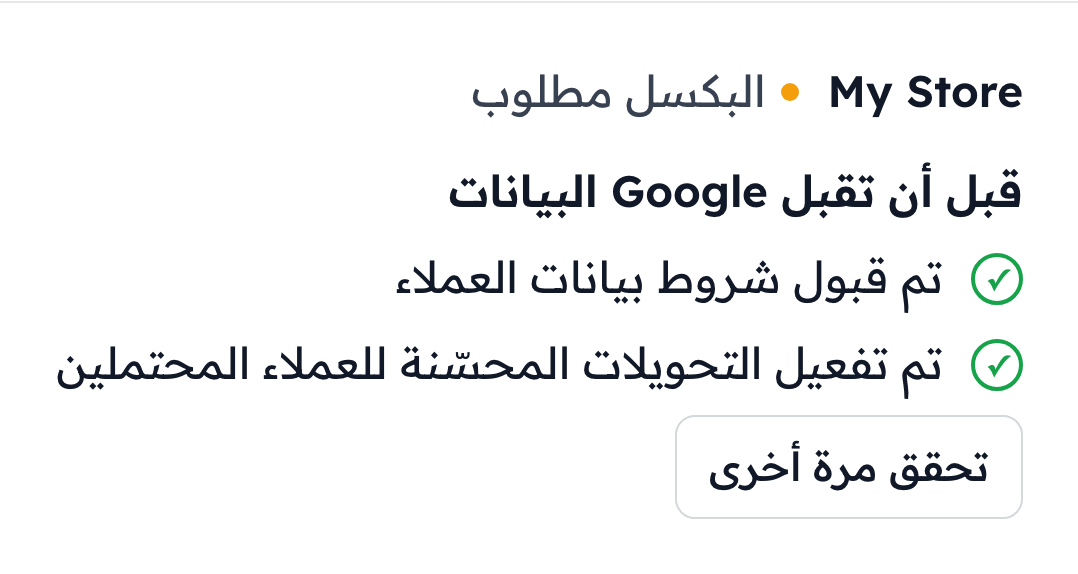
Under your account, Flowfy shows a short checklist titled Before Google accepts data:
- Accept Google's customer data terms
- Turn on enhanced conversions for leads
Both are switches only you can flip, inside Google Ads. Click Open in Google Ads next to either one. It opens Goals › Conversions › Settings in your account:
- Customer data terms should read Accepted. If it does not, open it and accept the terms.
- Open Enhanced conversions for leads, tick Turn on enhanced conversions for leads, and click Save.
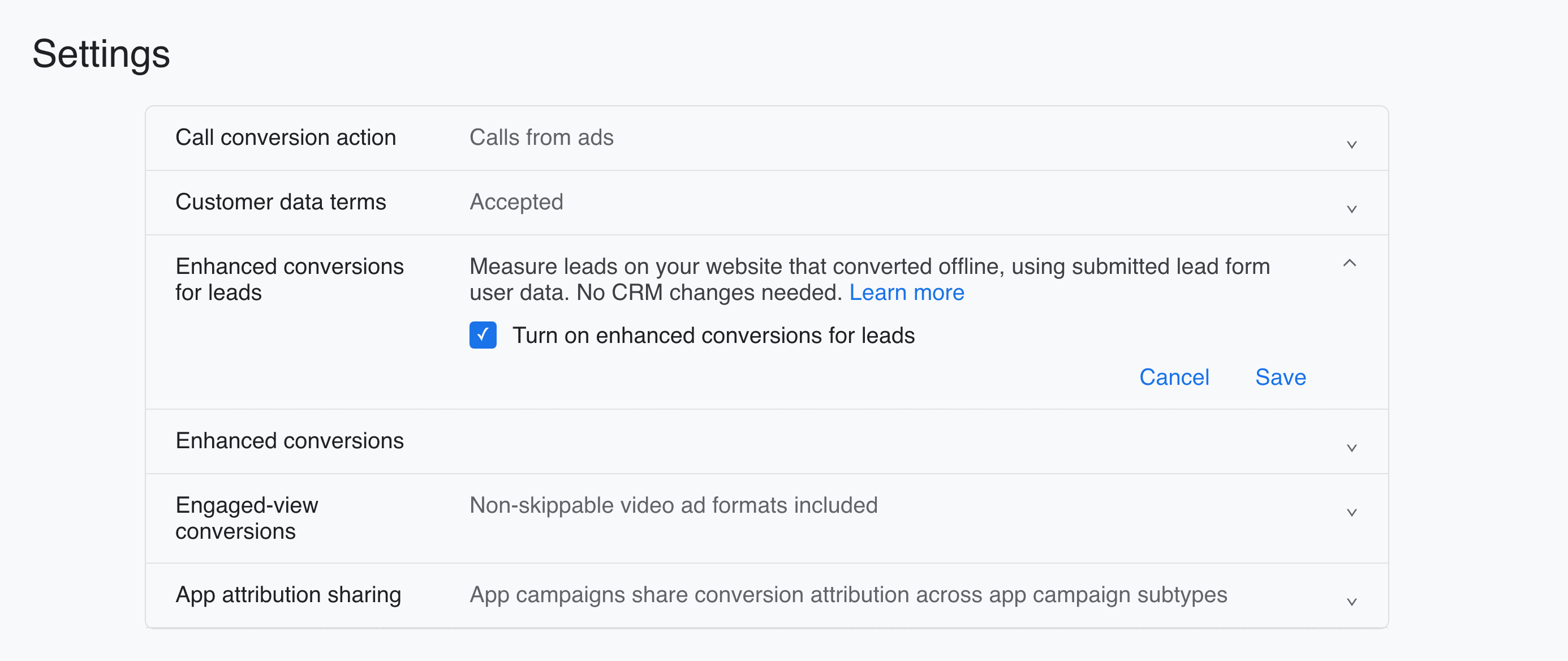
Google is merging these settings into a single Enhanced conversions switch. If your account shows only that one, turn it on.
Back in Flowfy, click Check again. The items change to Customer data terms accepted and Enhanced conversions for leads turned on.
2. Choose how Flowfy sends conversions
Pick one of the two buttons:
- Let Flowfy set up conversions. Recommended. Flowfy creates the conversion actions in your Google Ads account and connects them for you. Continue with step 3.
- Choose my own conversion actions. Use actions you already have in Google Ads. Skip to step 5.
3. Review what Flowfy will create
Click Set up conversions. Nothing is created yet: Flowfy first shows Review what Flowfy will create, the four actions it will add to your account.
| Conversion action | Counts as |
|---|---|
Flowfy – Purchase | Primary |
Flowfy – Add to cart | Secondary |
Flowfy – Begin checkout | Secondary |
Flowfy – Lead | Secondary |
A Primary action counts in your Conversions column and guides Smart Bidding. Secondary actions are for reporting only and don't change bidding. Only your purchases steer bidding; the other three are there for you to watch.
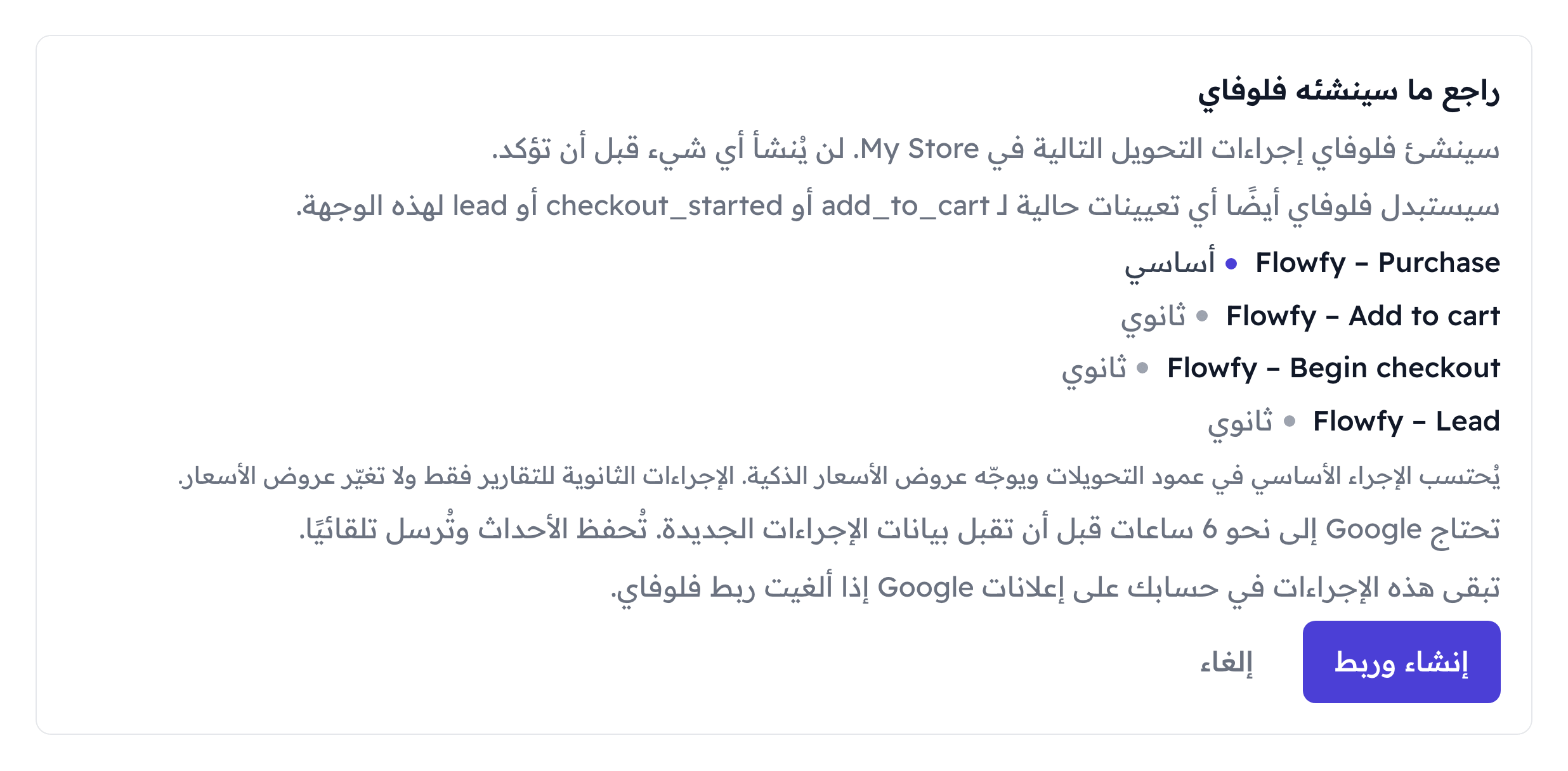
Click Create and connect. Flowfy creates the actions, links your store's events to them, and the account switches to Preparing.
These actions stay in your Google Ads account if you disconnect Flowfy.
4. If Flowfy warns about double counting
If your account already has another Primary purchase action, often a Google tag on your checkout page or a purchase imported from Google Analytics, the panel shows a red warning: This account already counts purchases. If Flowfy's purchase were Primary as well, every order would be counted twice and bidding would be thrown off.
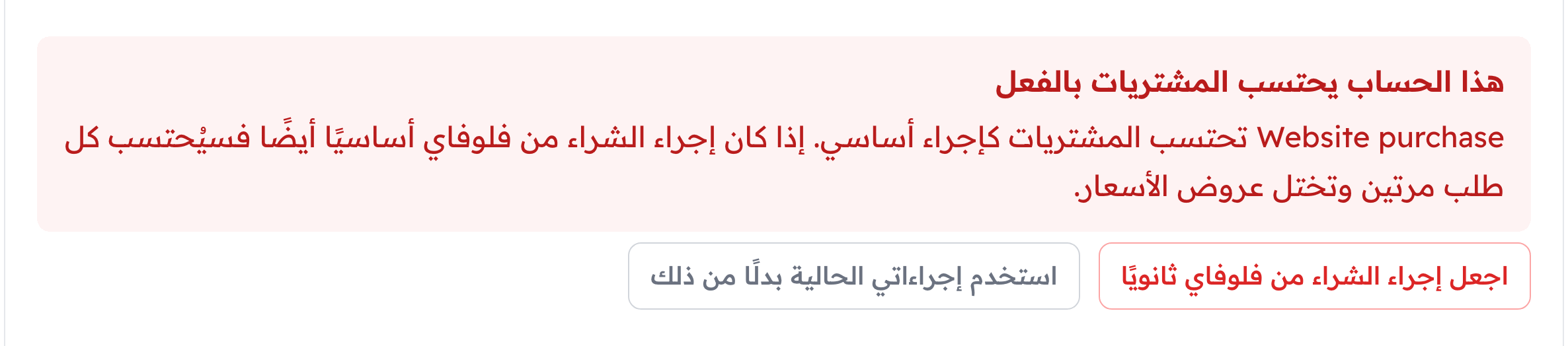
Create and connect stays disabled until you choose one:
- Make Flowfy's purchase Secondary. Your existing action keeps steering bidding, and
Flowfy – Purchasereports beside it without counting any order twice. Then click Create and connect. - Use my existing actions instead. This switches to your own actions, as in step 5.
You can change which purchase action is Primary later in Google Ads. Keep exactly one.
5. Or pick your own conversion actions
With Choose my own conversion actions, open the Pixel list, pick the action your orders should go to, then click Enable tracking.
Only actions that import conversions from clicks can receive Flowfy data: in Google Ads, their conversion source reads Website (import from clicks). Any other action, such as one fed by the Google tag, is greyed out in the list with that reason beside it. If the list is empty, click Open Ads Manager to create an action in Google Ads, then Refresh.
Your orders go to the action you picked. To send add-to-cart, checkout or lead events as well, click Map other events (cart, lead, custom) and pick an action for each.
Part 3 · Check that it's working
Your Google Ads account shows one of three statuses in Flowfy:
| Status | What it means |
|---|---|
| Preparing | Google needs about 6 hours before it accepts data for new actions. Flowfy shows when it expects Google to start. Events wait and are sent automatically. |
| Sending | Conversions are being delivered. |
| Needs action | Google refused the data. Flowfy shows Google says: with Google's reason, and an Open in Google Ads link to fix it. |

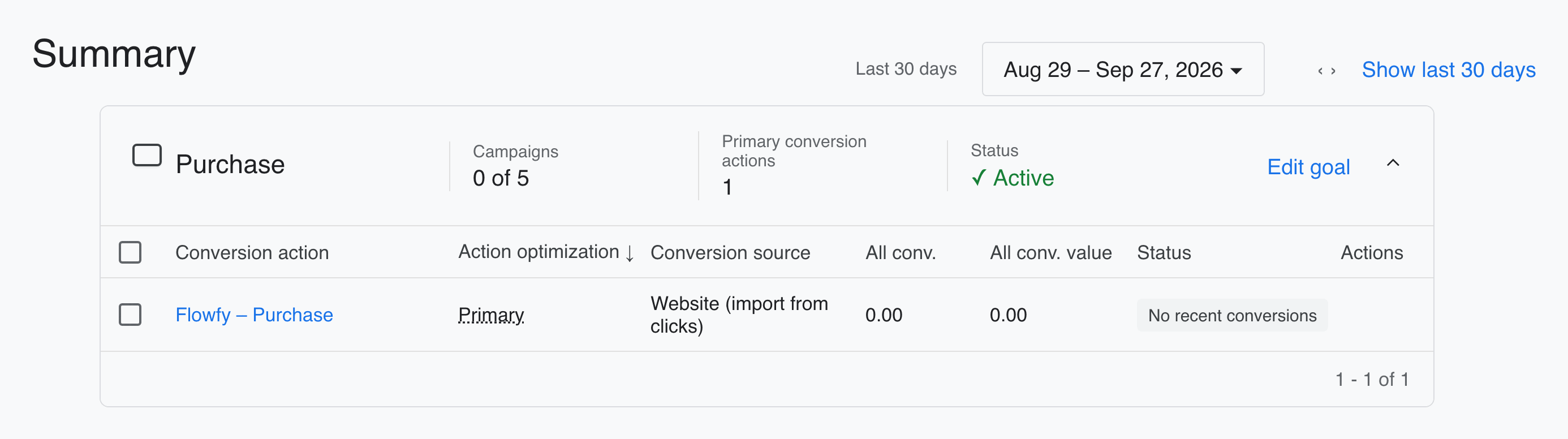
Once the account shows Sending, check on Google's side: in Google Ads, open Goals › Conversions › Summary. Flowfy – Purchase sits under the Purchase goal as Primary, with Website (import from clicks) as its conversion source. It reads No recent conversions until the first orders arrive. If something is wrong with the data, the Diagnostics tab at the top of the page says what. Imported conversions can take a few hours to reach your reports, so give it that long before you worry.
What gets sent
With Flowfy's own actions, your store's events go to Google Ads like this:
| Your store event | Google Ads conversion action |
|---|---|
| Order Completed | Flowfy – Purchase |
| Product Added | Flowfy – Add to cart |
| Checkout Started | Flowfy – Begin checkout |
| Lead | Flowfy – Lead |
Setting up these actions replaces any add-to-cart, checkout or lead mappings you already had on this destination. Page views and other events are not sent unless you map them to an action with Map other events (cart, lead, custom).
Each conversion carries:
- the order value and currency;
- the Google click id from the visit:
gclid, orgbraid/wbraidwhen there is nogclid; - the customer's email and phone, hashed by Flowfy before they are sent, so Google can match an order even without a click id;
- the order number as the transaction ID. Google does not count the same transaction twice in one conversion action, so a resent order cannot inflate your numbers.
Some events are skipped rather than sent: an event with no Google click id and no email or phone, because Google has nothing to match it to, and anything older than 90 days, which is past the window Google accepts for a click.
If something goes wrong
Google Ads shows "Missing permissions", or no tracking section appears. A permission was switched off at sign-in, or you connected before Flowfy could send conversions. Click Grant permissions and keep every permission switched on.
The account shows "Stopped — reconnect". Google stopped accepting Flowfy's sign-in. Click Reconnect and sign in again.
The account shows "Needs action". Read the Google says: reason. Most of the time one of the two checklist items is off: click Open in Google Ads, turn it on, then Check again.
One of Flowfy's actions was removed in Google Ads. Choose Let Flowfy set up conversions, then Set up conversions and Create and connect again. Flowfy reuses the actions that still exist and re-creates only the missing ones. A re-created action goes back to Preparing for about 6 hours.
An action is greyed out in the list. Only actions that import conversions from clicks, shown in Google Ads as Website (import from clicks), can receive Flowfy data. Pick another one, or let Flowfy create its own.
Google says the Add to cart or Begin checkout goal is "Misconfigured". Expected, and harmless: Flowfy's actions in those goals are Secondary on purpose, so the goals have no Primary action. Do not make them Primary; your campaigns would start bidding on carts and checkouts instead of sales.
Purchases are counted twice. Two purchase actions are Primary at once: Flowfy's and another one, such as your Google tag. Google removes duplicate transactions only within the same conversion action, so two Primary purchase actions count each order twice. Make one of them Secondary.
Google shows fewer conversions than your store has orders. Google only credits an order it can tie to someone who clicked your ad. Orders from organic or direct visits usually carry no Google click id, and then Google can only try to match on the hashed email or phone. That gap is expected; it does not mean orders are being lost.
Flowfy says "We couldn't check this account's Google Ads settings." Click Check again. If it keeps failing, reconnect Google Ads.
Flowfy says the account's conversions are managed in a manager account. Your Google Ads account tracks conversions in a manager account. That is fine: Flowfy reads and creates the actions there, and Open in Google Ads takes you to that manager account's settings.